urlDNA.io has a brand monitoring feature: you describe your brand once, and urlDNA shows you the scanned pages that match it. It’s a quick way to spot phishing pages and other attempts to impersonate your brand, and it’s free for registered users.
This post explains how it works, using urlDNA itself as the example brand. The original version is on the urlDNA blog.
How it works
A brand monitoring rule has three parts:
- Rule name — a name to recognize the rule, for example “urlDNA monitoring”.
- Brand assets — the visual elements of your brand: screenshots, logos, favicons. urlDNA compares them with the pages in its database to find where your brand appears.
- Tags — keywords related to the brand. For urlDNA we could use “urldna” and the tagline “The DNA test for websites”. You can also add the names of specific pages to narrow the monitoring down.
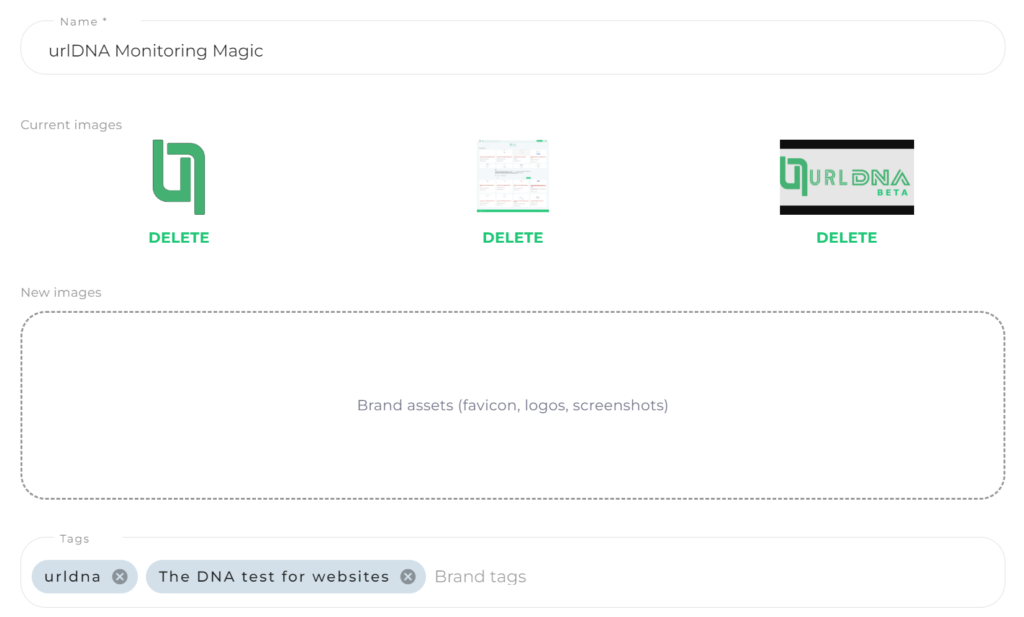
Setting up a rule
- Sign in and open the Brand Monitor menu, available to registered users.
- Click New Brand Monitor.
- Enter the rule name, the brand assets and the tags.
- Once the rule is set up, urlDNA lists all the pages that match it.
From there you can go through the matches and dig into the suspicious ones. You can try it at urlDNA.io.
Photo by Tobias Tullius on Unsplash.
Leave a Reply